Viewing Photos
Working with downloaded photos
CaptureGRID has four windows dedicated to viewing and working with photos: Filmstrip, Preview, Loupe, and the Photos table. Each is suited to a different way of looking at photos, and they are designed to work together — selecting a photo in one window updates the others.
For a quick map:
Filmstrip — thumbnails in a row or grid; the natural starting point for browsing recent photos
Preview — large display of a single photo, with histogram, grid, and other overlays
Loupe — closer detail view of a photo, useful for checking critical focus
Photos — the full database of every photo the app knows about, in table form, with filtering and sorting
Filmstrip
The Filmstrip window shows photo thumbnails arranged in a strip. This is the most-used view for keeping track of recently downloaded photos and quickly stepping through them.
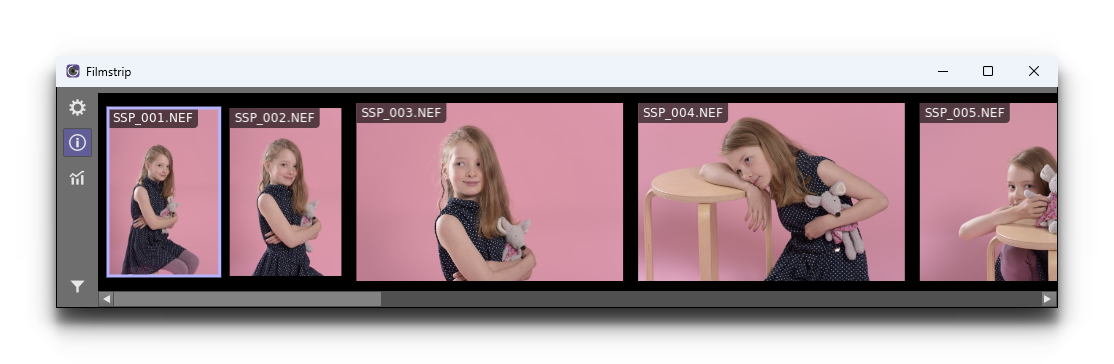
Orientation and Layout
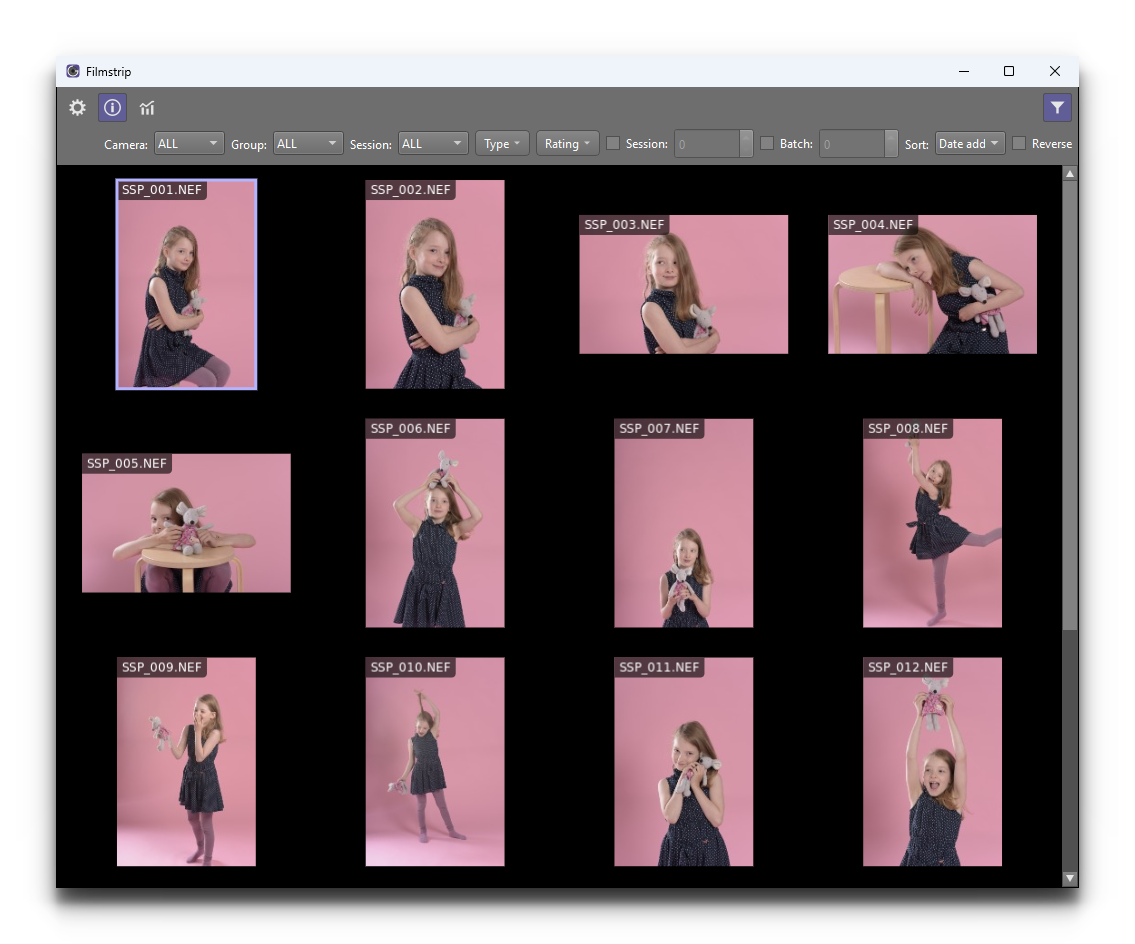
The Filmstrip can be set to either horizontal or vertical orientation, which lets it dock comfortably on different edges of the screen. In addition to the strip layout, it also supports a photo grid layout mode that arranges thumbnails in a two-dimensional grid rather than a single row or column.
A toolbar at the edge of the window provides quick access to layout controls and filter toggles.
Filtering and Sorting
The Filmstrip’s filter controls let you narrow the visible thumbnails. You can filter by:
Camera
Group
Session and batch number
Rating (see Photo Ratings)
Image type (e.g. JPEG, RAW)
Sort order can also be adjusted, for example to put newest photos first.
Preview
The Preview window shows a large, full-frame view of a single photo or live view stream. It is the main place for visually inspecting a photo after capture.
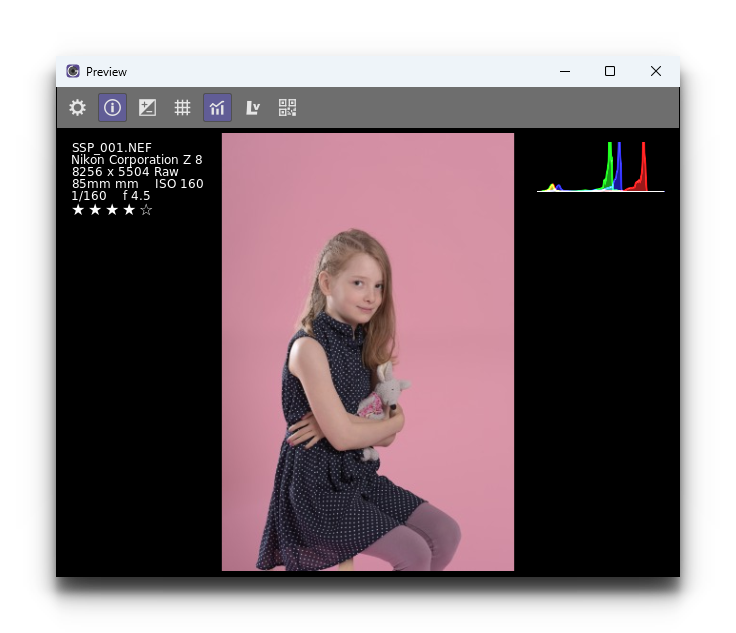
The window can display:
The most recently taken photo (the default view)
A specific photo selected from the Filmstrip or Photos table
Live View from the camera that took the photo
When Live View is showing, you can move the camera’s AF area and focus from the Preview. See Live View in the Preview and Dashboard.
Overlays
A number of overlays can be enabled to help with image inspection:
Info overlay — shows camera name, capture settings (aperture, shutter, ISO, etc.), and filename
Histogram — RGB channel levels for the current image
Grid overlay — composition guide (e.g. rule of thirds)
Highlight indicator — shows areas of the image where the colour is at the edge of the range
These overlays can be toggled individually from the window’s toolbar or from the Options window.
Loupe
The Loupe window provides a closer detail view of a photo, showing a magnified region. It is most useful for checking critical focus and fine detail that cannot easily be seen at the regular display size.
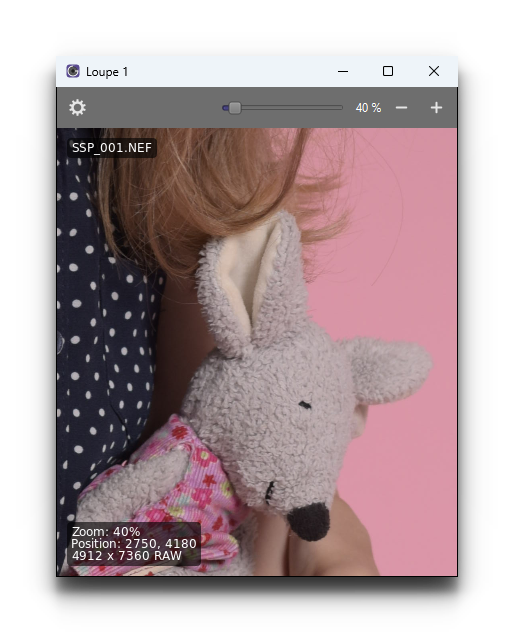
The Loupe is linked to the Preview window — when both are open, the Loupe shows a magnified view of a region within the Preview, and the Preview shows a rectangle indicating which region the Loupe is focused on. You can drag the rectangle in the Preview to move the Loupe, or use the controls in the Loupe window directly.
Multiple Loupe Instances
The app supports up to two Loupe windows open at the same time. This makes it possible to inspect two areas of an image side by side without having to pan back and forth.
Photos Table
The Photos window provides a tabular view of every photo the app knows about. Unlike the Filmstrip — which is geared toward recent photos — the Photos table is for working with the whole photo collection.
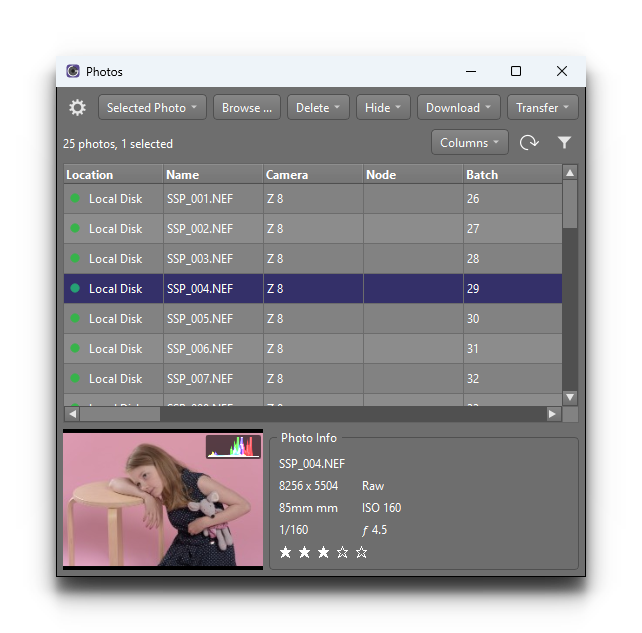
Each row in the table represents one photo, with columns for filename, camera, group, session, batch, rating, file size, capture time, and other details. Column visibility and order can be customised.
Filter Row
A filter row at the top of the table allows the visible photos to be narrowed by:
Camera
Group
Session and batch number
Rating (see Photo Ratings)
Image type
Location (camera memory card or local disk)
Column headings can be clicked to sort.
Bulk Actions
Multiple rows can be selected in the Photos table, and right-clicking opens a context menu with actions that apply to the selection. This includes downloading, deleting, renaming, and changing rating.
Selection Across Windows
The four photo windows share a unified selection. When you click a thumbnail in the Filmstrip, the Preview updates to show that photo and the Loupe updates to show a magnified region of it. The same selection is reflected in the highlighted row of the Photos table.
This makes it natural to set up the windows together — for example, with the Filmstrip and Photos table on one side of the screen for browsing, and the Preview and Loupe on the other for inspection.