Script Controls
Running Python scripts inside the app to automate cameras
CaptureGRID has a built-in Python interpreter that can run scripts against the connected cameras. This is the natural way to automate repeated capture patterns — time-lapse, focus stacking, bracketing, delayed trigger, and so on — without needing a separate program.
For automation driven from outside the app, see the External API described in External API. The two mechanisms are complementary:
Script Controls — run a script inside the app, with no external program required. The script has direct access to the in-app camera and photo APIs.
External API — drive the app from outside via ZeroMQ, from a program that may be in any language.
Many automation tasks can be done with either approach; scripts are usually quicker to set up because there is no separate process to manage.
Script Controls Window
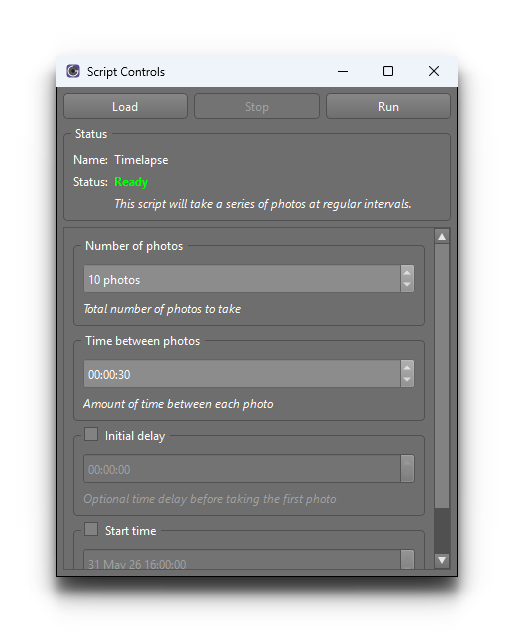
The Script Controls window is the place to load, configure, and run scripts.
Loading a Script
A script is loaded from the
menu item. The app will prompt for the script file (a .py file)
and then read it.
Once loaded, the script appears in the Script Controls window along with any parameters it defines.
Parameters
Scripts can declare parameters that the user can set from the UI before running. The Script Controls window automatically generates the appropriate input widgets for each parameter — for example, number boxes for numeric parameters and text boxes for text parameters. This allows the same script to be reused with different values without editing the source.
Running
The script can be started from the Run button in the
window, or from the keyboard shortcut F8 (see
Keyboard Shortcuts). It runs against the
currently active cameras (see Active Camera),
so scripts can be designed once and then applied across single
cameras, all cameras, or a specific group depending on the active
selection.
Output and status messages from the script appear in the Log window. A running script can be interrupted from the Script Controls window.
Auto-Loading
An option in the Options window controls whether the app automatically loads a previously used script on startup. This is useful when the same script is used as part of a regular workflow, so it is ready to run without manually loading each time.
Script API
Scripts have access to a Python API for interacting with cameras and photos. The API surface includes functions for triggering cameras, changing camera settings, downloading photos, and waiting for events.
Tip
For documentation of the script API, including the available functions and example scripts, see the public git repo: