Photo Import
Importing existing photos from a camera’s memory card
Alongside the regular automatic download of newly-taken photos, CaptureGRID can also import existing photos already on a camera’s memory card. This is useful when:
Photos were taken before the camera was connected to the app, and you want to bring them into the app’s photo library
A camera was previously used in Card storage mode (see Photo Download), and you now want to pull those photos down to the local computer
You are setting up the app with a camera that already has photos on it from a prior session
Photo import is distinct from photo download: download happens automatically as new photos are taken, while import is a deliberate action you start to fetch photos that the app did not see being captured.
Starting an Import
An import can be started in two ways:
From the Cameras window, click the Import button in the toolbar. The button has a dropdown with two options:
- Import photos from selected cameras
Import from the cameras currently selected in the Cameras table.
- Import photos from all cameras
Import from every connected camera.
From the Cameras table itself, right-click a camera and choose Import Photos from the context menu. If several rows are selected before right-clicking, the action applies to all of them.
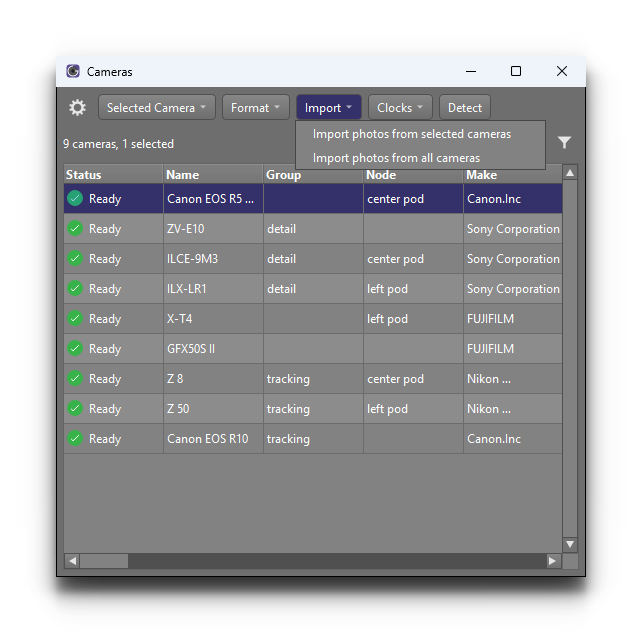
For multi-camera rigs, this means a single click can pull photos from the whole rig at once.
Import Process
Starting an import does not download any image files. Instead, the app
queries the camera’s memory card and adds an entry to its photo library
for each photo found there. These entries appear in the Filmstrip
and the Photos table just like automatically-detected photos, with
their Location shown as Camera to indicate that the file is
still on the memory card and has not yet been downloaded.
The image files themselves are downloaded later, in the normal way — for example with the Download All button or the per-photo Download action (see Manual Download). Once downloaded, the files are saved to the Photo Download Folder and have their filenames computed according to the current name policy (see Name Policy).
While the import is running, the affected camera is shown as busy in the Cameras window and Dashboard, so you can see that it is not available for triggering until the import completes.
Ratings and Metadata
EXIF metadata is read when a photo is downloaded, not at import time. So any rating that was set on the camera or by another tool is picked up once an imported photo has been downloaded to the computer, in the same way as for photos that were downloaded automatically. For more on ratings, see Photo Ratings.